
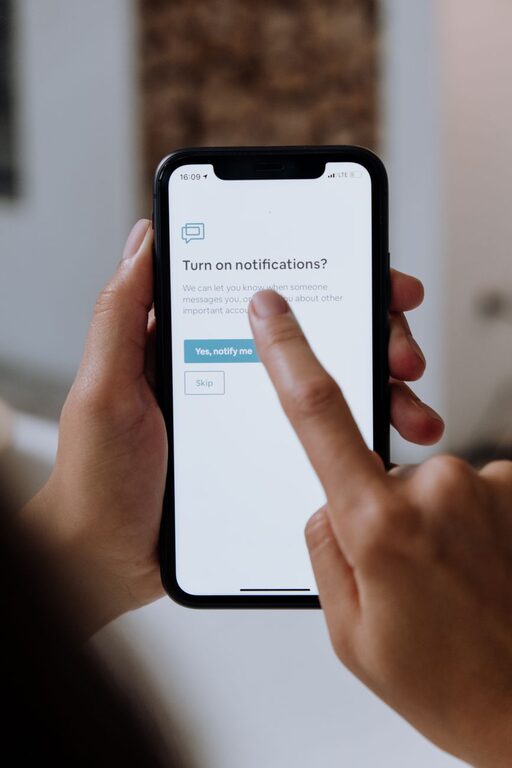
In today’s digital world, notifications are everywhere—popping up on smartphones, computers, tablets, and even smartwatches. While these alerts can keep us informed and connected, they can also become distracting if not managed properly. Setting boundaries with notifications is essential to protect your focus, reduce stress, and improve your overall productivity.
In this post, we’ll explore effective tips for managing notifications so they serve you rather than interrupt you.
Why Setting Boundaries with Notifications Matters
Notifications are designed to grab your attention. Constant alerts can fragment your focus, increase stress, and make it harder to complete tasks efficiently. Over time, this can impact your mental well-being and work-life balance. By setting clear boundaries, you can:
– Control when and how you receive notifications
– Reduce unnecessary interruptions
– Improve concentration on important tasks
– Create dedicated time for breaks and personal time
Step 1: Audit Your Notifications
Begin by assessing what notifications you currently receive on your devices. Ask yourself:
– Which apps send me notifications?
– Are all of these alerts necessary?
– Which notifications tend to distract me the most?
Open the notification settings on your phone or computer and review all app permissions. You might be surprised by how many notifications come from apps you rarely use or don’t need alerts from.
Step 2: Customize Notification Settings
Most devices let you customize notification preferences for each app. Consider these options:
– Turn off non-essential notifications. Disable alerts from apps that aren’t crucial to your daily tasks.
– Use “Do Not Disturb” mode. Schedule automatic quiet hours, such as during work sessions or while sleeping.
– Set priority notifications. Allow alerts only from people or apps that matter most.
– Use silent or banner-only alerts. Some systems let you receive notifications without sound or vibration, which can help reduce distractions.
Step 3: Create Notification-Free Zones and Times
Designate specific zones or times when notifications are limited or turned off:
– During focused work periods. For example, use the Pomodoro technique with set work and break intervals, and silence notifications during the work intervals.
– At meals and social time. Avoid distractions when spending time with family or friends.
– Before bedtime. Disable notifications at least 30 minutes before sleep to support relaxation.
Many devices have settings or apps that enable automatic activation of these quiet times.
Step 4: Manage Email and Messaging Alerts
Email and messaging apps are often major sources of notifications. To reduce overload:
– Adjust email notifications so you only get alerts for priority messages.
– Set specific times to check email rather than responding immediately.
– Use filters or folders to organize incoming messages.
– Silence group chats or mute less important conversations.
Step 5: Limit Social Media Notifications
Social media notifications are designed to be engaging but often lead to distraction. Tactics to manage these include:
– Turning off notifications for likes, comments, or shares.
– Allowing only direct messages or mentions.
– Setting time limits on social media app usage.
– Using apps or device features that block social media during focus periods.
Step 6: Communicate Your Boundaries
If you’re part of a team or household, let others know about your notification boundaries. For instance:
– Inform colleagues of your “quiet hours” so they don’t expect immediate responses.
– Set expectations around response times for messages and emails.
– Encourage family members to respect your device-free zones or times.
Clear communication helps others support your efforts to minimize interruptions.
Step 7: Regularly Reassess and Adjust
Your notification needs may change over time. Make it a habit to:
– Review your notification settings monthly.
– Adjust based on new apps or changing work demands.
– Reflect on what’s working and what’s distracting you.
This ongoing process helps keep your digital environment aligned with your goals.
Helpful Tools and Features
Here are some tools and features that can assist with setting notification boundaries:
– Built-in Do Not Disturb modes (iOS, Android, Windows, macOS)
– Focus modes (iOS and Android offer modes to customize alerts based on activity)
– Third-party apps like Forest, StayFocusd, or Freedom to block distractions
– Email management tools like filters in Gmail or Outlook
Experiment to find what combination works best for your lifestyle.
Final Thoughts
Managing notifications is about reclaiming control over your attention. While technology is helpful, it should not dominate your day. By setting thoughtful boundaries with notifications, you can create a more focused, calm, and productive digital life.
Start small, be consistent, and adjust as needed. Over time, you’ll likely find it easier to concentrate, enjoy downtime, and maintain better balance throughout your day.